
Overview
Rspamd is an advanced spam filtering system integrated into Webuzo to help detect and filter unwanted or malicious emails. It analyzes incoming emails using multiple spam detection techniques, including DNS blacklists, Bayesian filtering, heuristics, SPF/DKIM/DMARC validation, greylisting, and reputation checks.
Using the Rspamd interface in Webuzo, you can:
- Enable or disable spam filtering
- Configure spam score actions
- Rewrite suspicious email subjects
- Add spam warning headers
- Enable greylisting
- Move spam emails to a separate Spam Box
-
Blacklist or whitelist email addresses
You can access Rspamd from:
Webuzo Enduser Panel > Email > Rspamd wizard.
Procedure
The Rspamd page lets you configure how incoming spam emails are handled.
Enable / Disable Rspamd
At the top of the page, you can see the current Rspamd status.
- Click Enable to activate spam filtering.
- Click Disable to turn off spam filtering.
When enabled, all incoming emails are scanned and scored based on spam probability.
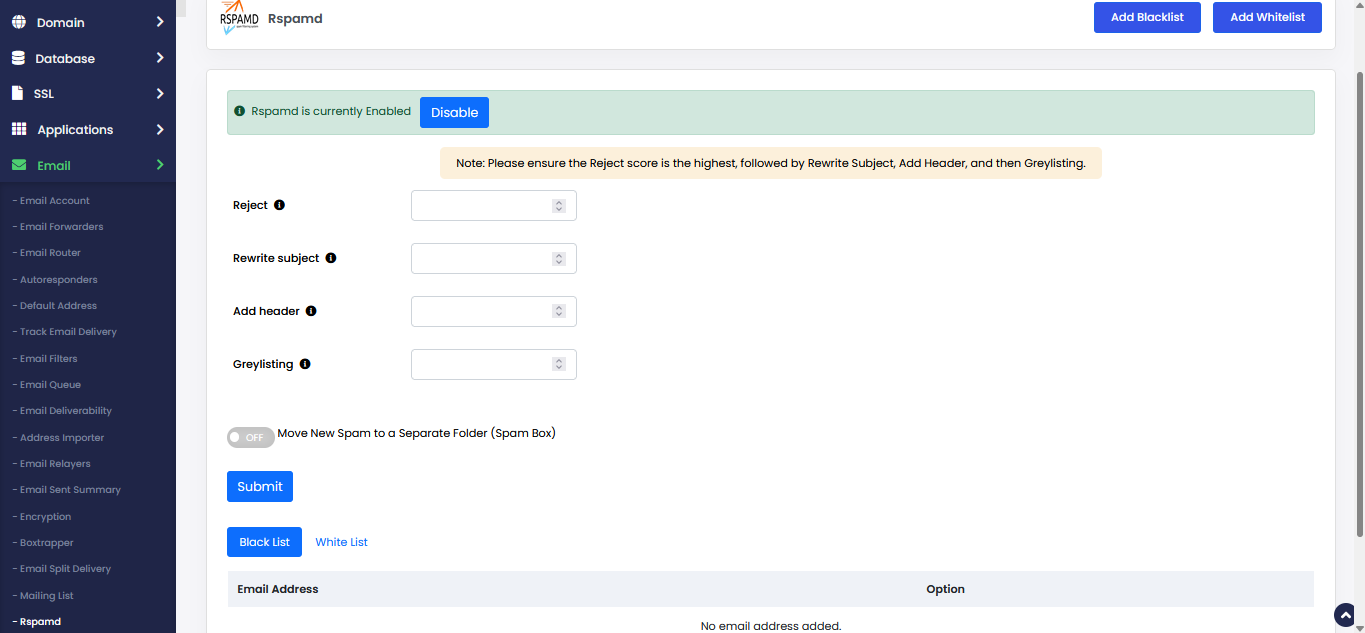
Spam Score Actions
Rspamd assigns a spam score to every incoming email. Based on the configured thresholds, different actions are performed.
Note: The Reject score should always be the highest value, followed by Rewrite Subject, Add Header, and then Greylisting.
Reject:
This value defines the spam score at which an email is completely rejected by the mail server.
Example:
If the Reject score is set to 15Any email scoring 15 or higher will be rejected immediately.
Recommended range:
12-15
Rewrite Subject:
This option rewrites the subject line of suspicious emails.
Example:
Original Subject: Meeting Schedule
Modified Subject: **SPAM** Meeting Schedule
Recommended range:
6-8
Add Header:
Adds spam-related headers to the email without rejecting it.
Headers may include:
- Spam score
- Spam status
- Detection information
This helps mail clients or filters identify spam messages.
Recommended range:
4-6
Greylisting:
Greylisting temporarily delays emails from unknown senders to reduce spam delivery.
Legitimate mail servers usually retry delivery after a short time, while many spam servers do not.
Recommended range:
3-5
Move New Spam to a Separate Folder (Spam Box)
When enabled, emails identified as spam are automatically moved to a separate Spam folder instead of appearing in the Inbox.
Benefits:
- Keeps Inbox clean
- Allows users to review spam messages safely
- Prevents accidental deletion of legitimate emails
To enable:
- Toggle the switch ON
- Click Submit
Saving Configuration
After modifying any settings:
- Click the Submit button
- Rspamd will apply the updated spam filtering rules
Blacklist:
The Blacklist feature allows you to block emails from specific senders or domains.
Add a Blacklist Entry
- Click Add Blacklist
- Enter the Email address or domain
- Save the entry
Examples:
-
[email protected] -
*@spamdomain.com
Emails from blacklisted senders are automatically treated as spam or rejected.
Whitelist:
The Whitelist feature allows trusted email addresses or domains to bypass spam filtering.
Add a Whitelist Entry
- Click Add Whitelist
- Enter the trusted email address or domain
- Save the entry
Examples:
-
[email protected] -
*@trusted-domain.com
Whitelisted senders are always allowed, even if the spam score is high.
Important Notes
Always ensure:
Greylisting < Add Header < Rewrite Subject < Reject