
Overview
The General Settings page allows you to configure the default system and panel behavior in Webuzo, including email, language, theme, timezone, security, session, SSL, and user-related settings.
Webuzo Admin Panel, navigate to Home > Settings > General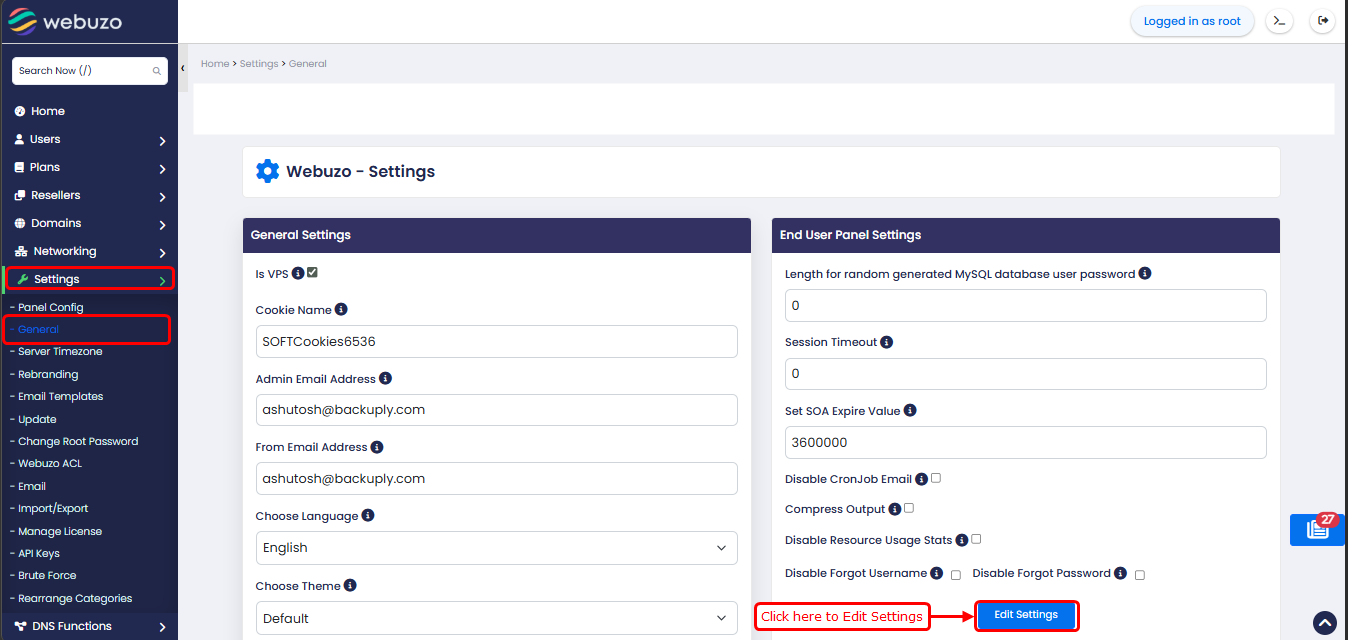
General Settings
Is VPS – Enable this option if Webuzo is installed on a VPS environment.
Cookie Name – Set the name used for Webuzo session cookies.
Admin Email Address – Enter the administrator’s email address for panel-related communication.
From Email Address – Specify the sender email address used for outgoing panel emails.
Choose Language – Select the default language for the Webuzo panel.
Choose Theme – Select the default theme for the Webuzo interface.
End User Panel Settings
Length for random generated MySQL database user password – Set the default length for automatically generated MySQL user passwords.
Session Timeout – Define the time after which an inactive session will automatically expire.
Set SOA Expire Value – Set the SOA expire value used in DNS zone settings.
Disable CronJob Email – Enable this option to stop CronJob notification emails from being sent.
Compress Output – Enable output compression to improve page loading performance.
Disable Resource Usage Stats – Disable the display of resource usage statistics in the panel.
Disable Forgot Username – Hide or disable the “Forgot Username” recovery option.
Disable Forgot Password – Hide or disable the “Forgot Password” recovery option.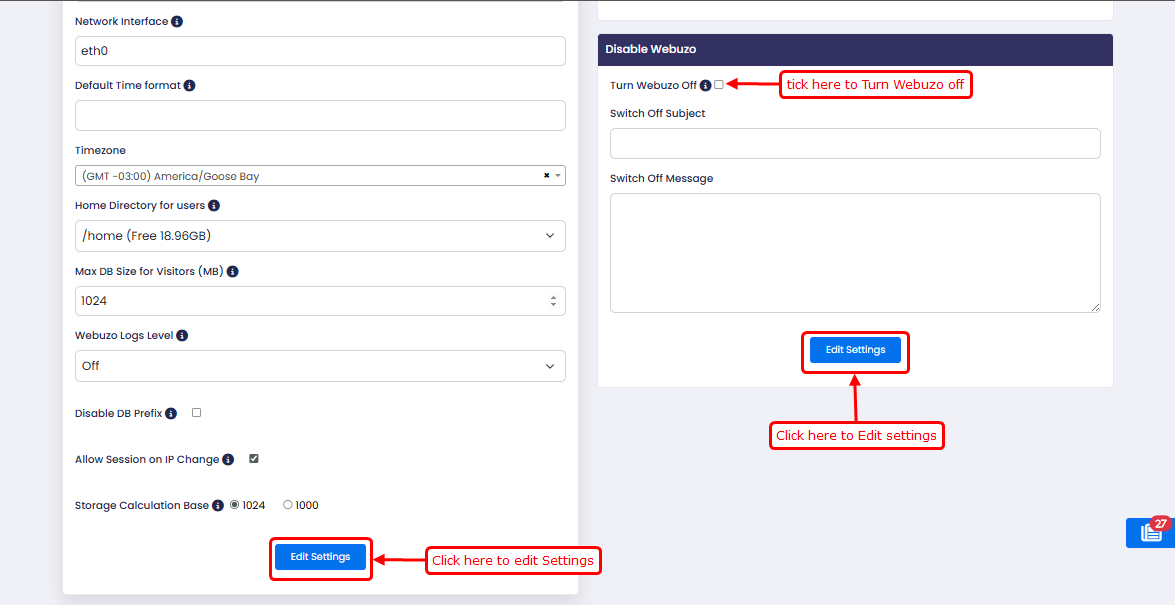
General Settings
Network Interface – Choose the network interface Webuzo should use.
Default Time format – Set the default time display format in the panel.
Timezone – Select the server or panel timezone.
Home Directory for users – Define the default home directory path for users.
Max DB Size for Visitors (MB) – Set the maximum database size limit for visitor statistics.
Webuzo Logs Level – Choose the level of logging for Webuzo activity and events.
Disable DB Prefix – Enable this to stop automatic database prefix usage.
Allow Session on IP Change – Allow user sessions to remain active even if the IP address changes.
Storage Calculation Base 1024 / 1000 – Choose how storage usage is calculated and displayed.
Disable Webuzo
Turn Webuzo Off – Use this option to completely switch off the Webuzo interface for users.
Switch Off Subject – Set the subject line for the notification shown when Webuzo is turned off.
Switch Off Message – Enter the custom message to display when Webuzo is disabled.
Demo User Settings
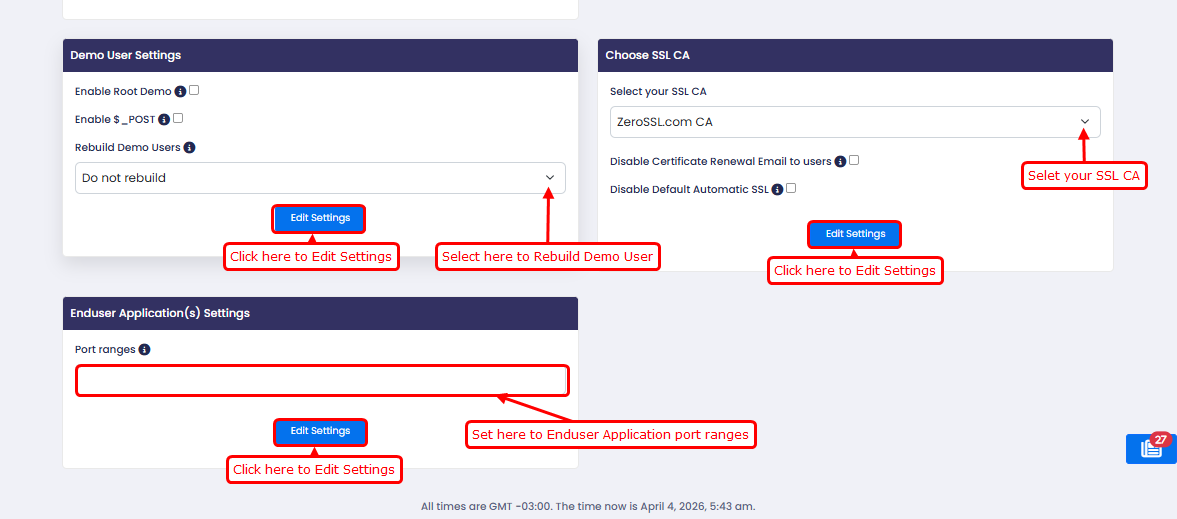
Enable Root Demo – Enable demo access for the root/admin panel.
Enable $_POST – Allow POST requests to function in demo mode.
Rebuild Demo Users – Recreate or refresh the demo user accounts.
Choose SSL CA
Select your SSL CA – Select the Certificate Authority to be used for SSL certificates.
Disable Certificate Renewal Email to users – Prevent SSL renewal notification emails from being sent to users.
Disable Default Automatic SSL – Disable the automatic SSL feature enabled by default.
Enduser Application(s) Settings
Port ranges – Configure settings related to end-user applications.