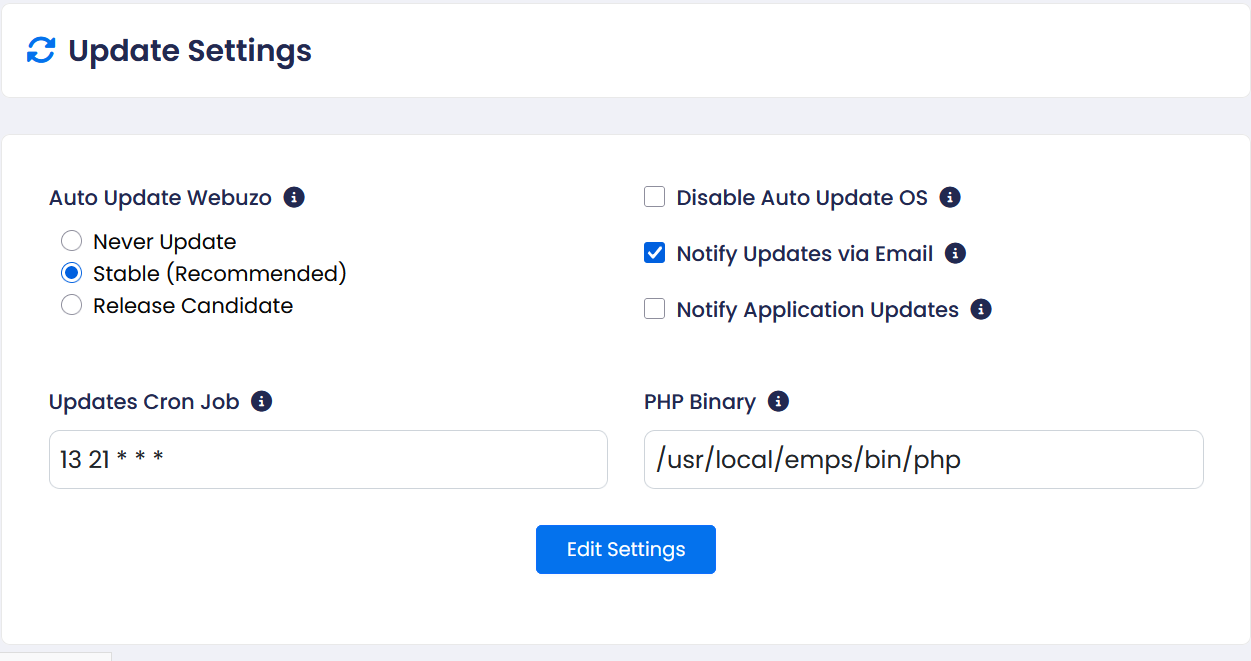
overview
This guide will show you to updates apps on the webuzo admin panel
Procedure
Navigate to the Webuzo Admin Panel >Apps>updates Apps
You can update applications from here, and you can also select one or multiple applications to update.
Note: If the Auto Upgrade option for an application is set to "Do not Auto Upgrade" under Home > Apps > Installed Apps, the application will not be updated automatically. 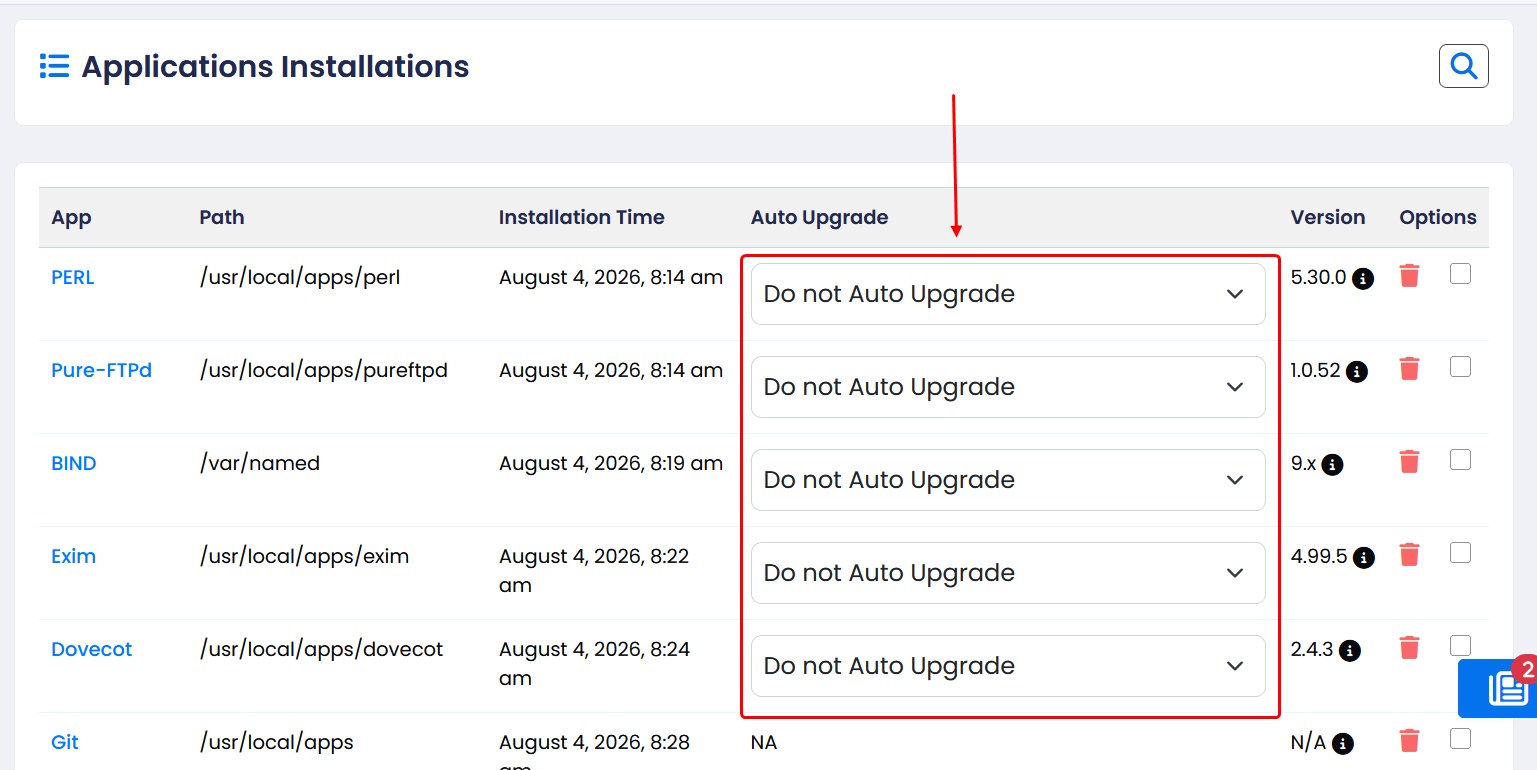
To install the latest available version, you must update it manually from Home > Apps > Update Apps.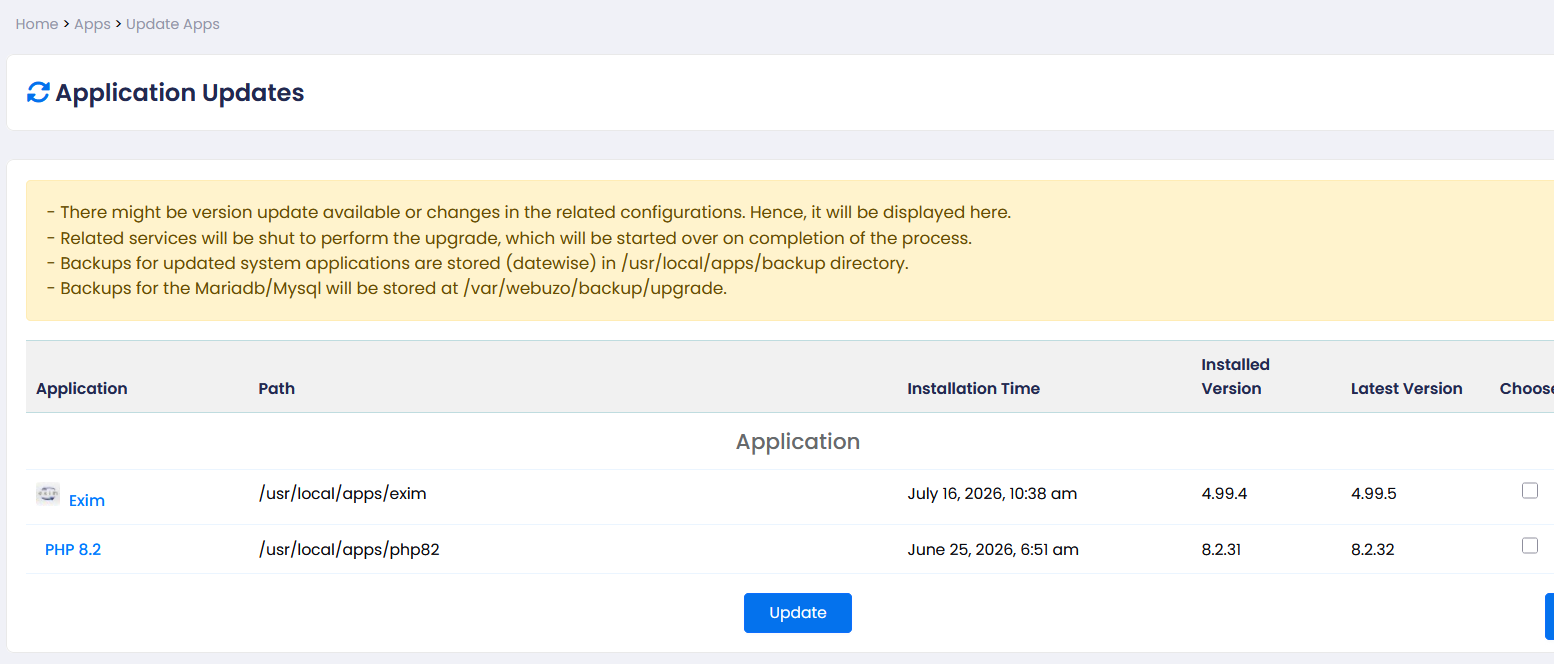
If you do not want to update applications manually, you can configure the Auto Upgrade option under Home > Apps > Installed Apps.
1)Upgrade to Minor versions only to automatically install minor updates.
2)Upgrade to latest version to automatically install both major and minor updates.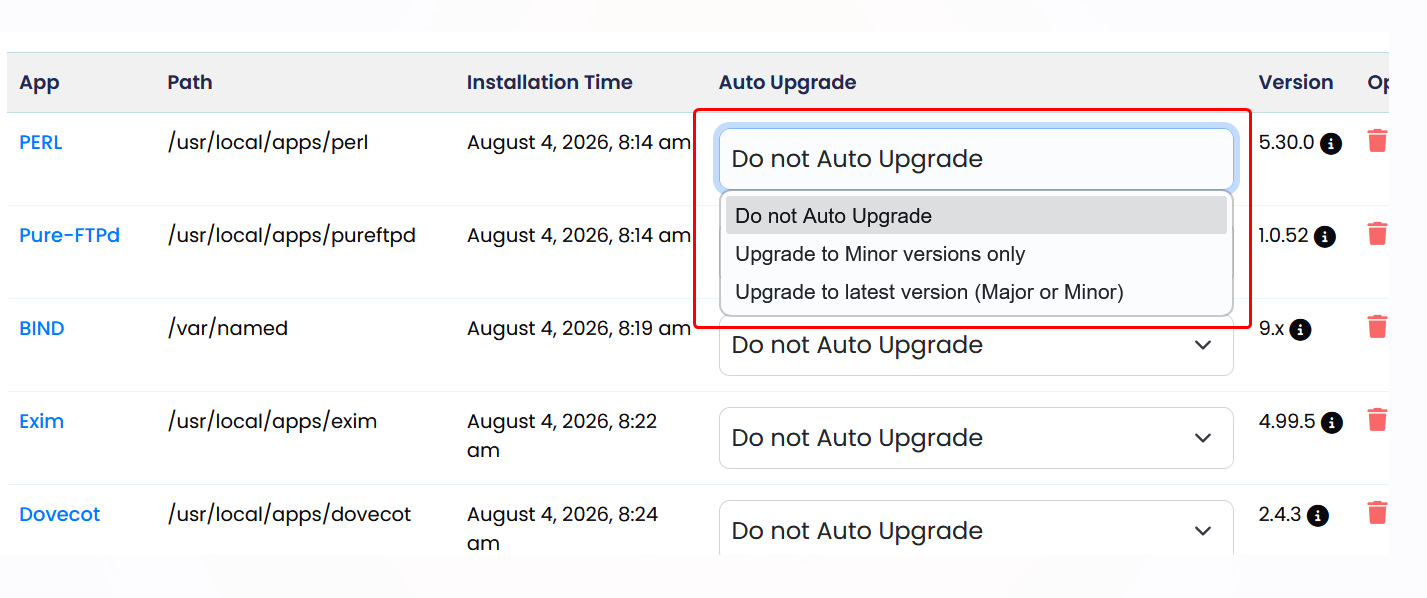
If Do not Auto Upgrade is selected, you will need to update the application manually from Home > Apps > Update Apps.
Additionally, Auto Update Webuzo under Home > Settings > Update Settings must be set to Stable (Recommended) or Release Candidate. If it is set to Never Update, new application updates will not appear under Home > Apps > Update Apps.