
Overview
Webuzo MCP enables AI-powered applications to connect with and manage Webuzo servers through the Model Context Protocol. It allows users to generate API keys, configure tool-level permissions, and integrate supported AI clients such as Claude, Cursor, Windsurf, and VS Code for simplified server management through AI assistants.
Key Features
Connect AI assistants to Webuzo servers.
Manage server functionality through MCP tools.
Generate dedicated MCP API keys.
Configure permissions for individual tools.
Control access to different Webuzo modules.
Connect multiple supported AI clients.
Manage and revoke generated MCP keys.
Supported AI Clients
Webuzo MCP supports configuration for the following clients:
Claude Desktop
Claude Code
Cursor
Windsurf
Visual Studio Code
JetBrains IDEs
Google Antigravity
OpenCode
Navigate
Go to Enduser panel > Configuration > MCP Configuration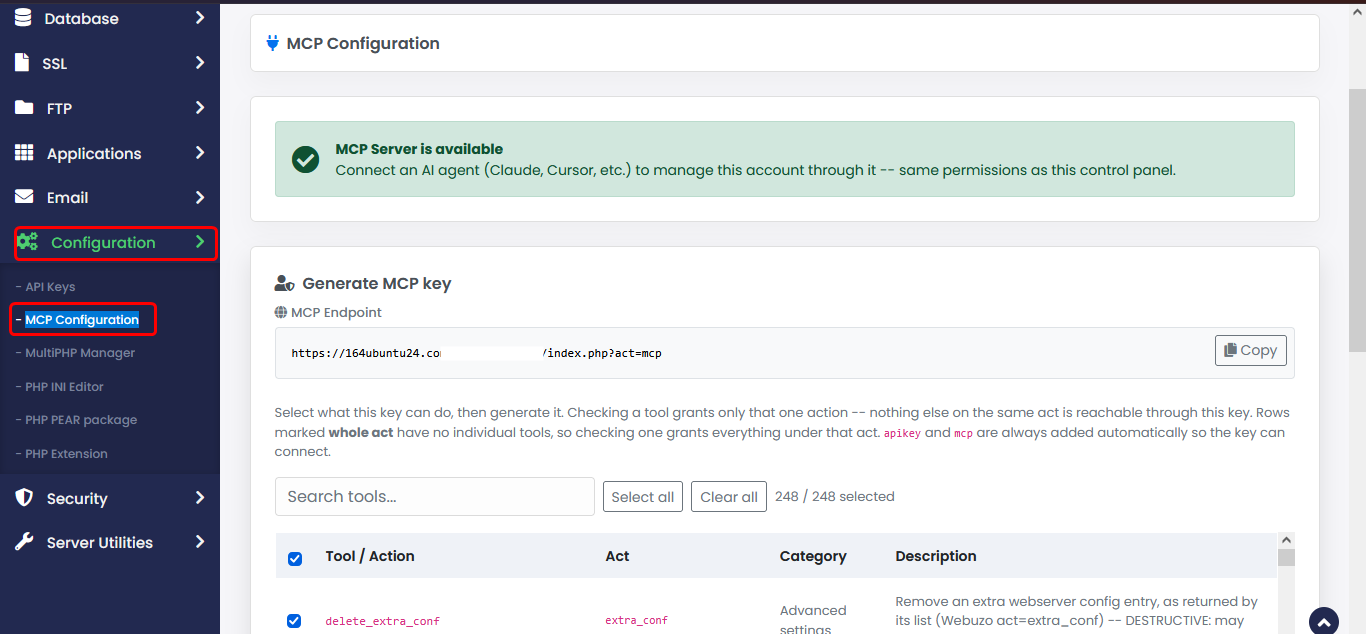
Webuzo provides an MCP endpoint that AI clients use to communicate with the server.
The endpoint is displayed under the Generate MCP Key section, you can copy the endpoint.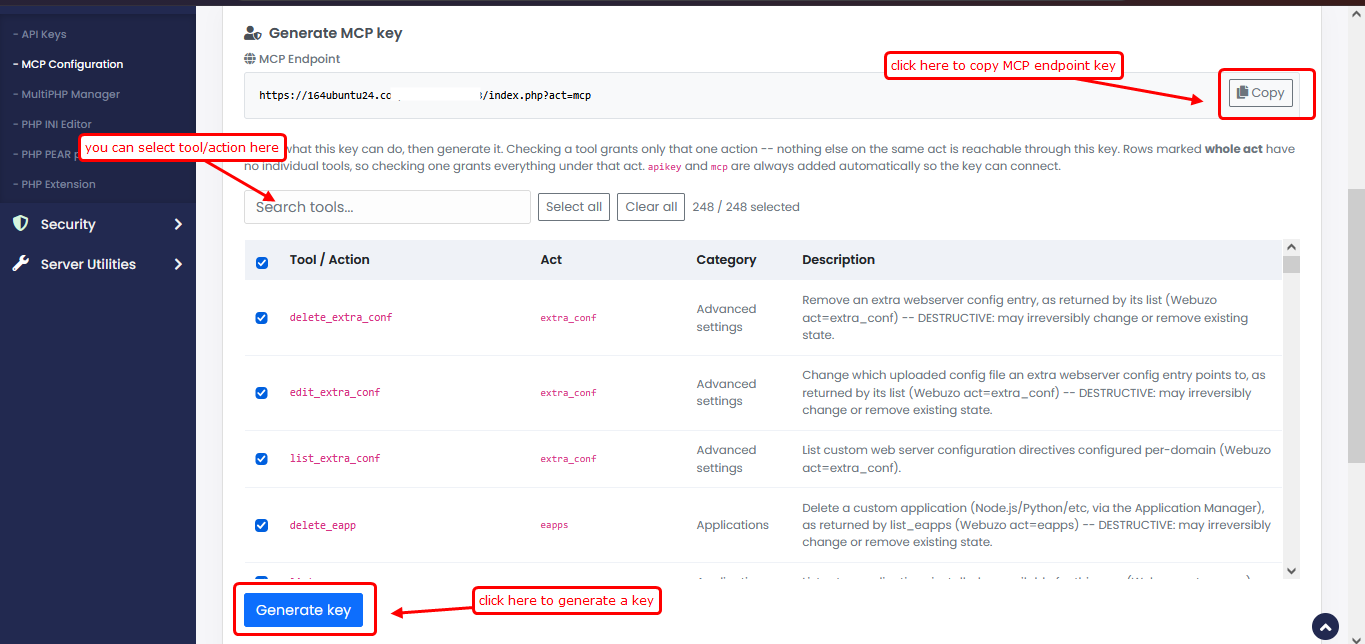
The apikey and mcp acts are automatically included to allow the generated key to connect.
Selecting a tool grants permission only for that particular action. Selecting a row marked as a whole act grants access to all tools under that act.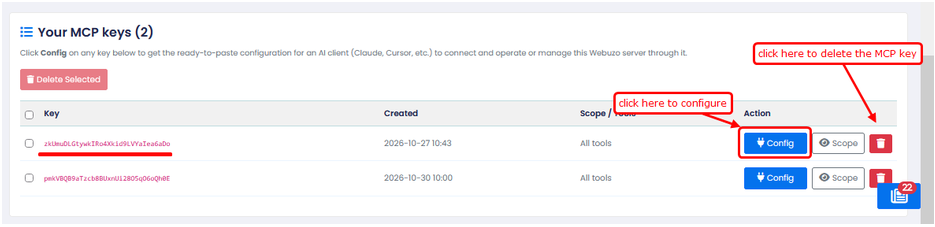
Click Config on any key below to get the ready-to-paste configuration for an AI client (Claude, Cursor, etc.) to connect and operate or manage this Webuzo server through it.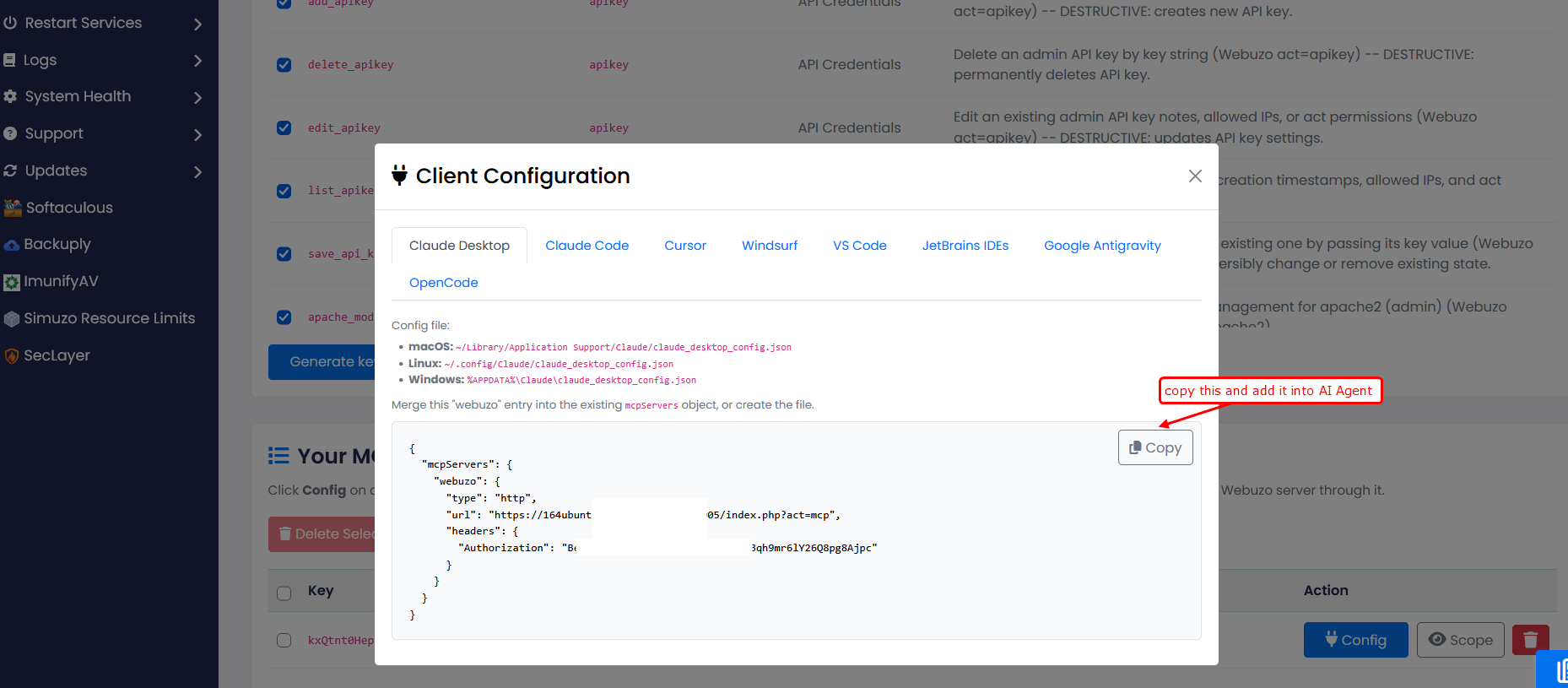
Webuzo provides a ready-to-use configuration for each supported AI client. users can copy this configuration directly from the Client Configuration window and add it to their preferred AI agent.
Key Scope:
The Key Scope window displays the total number of available tools, along with the number of granted and disabled tools.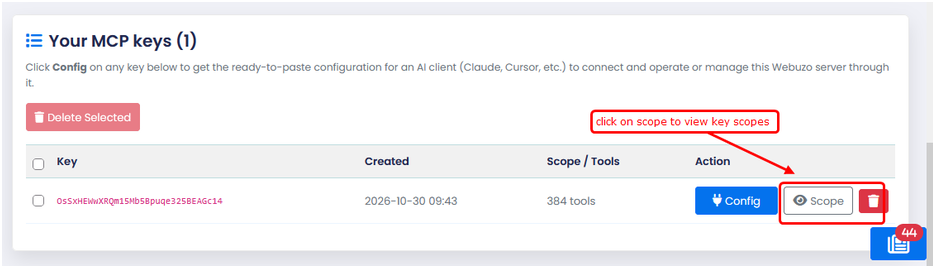
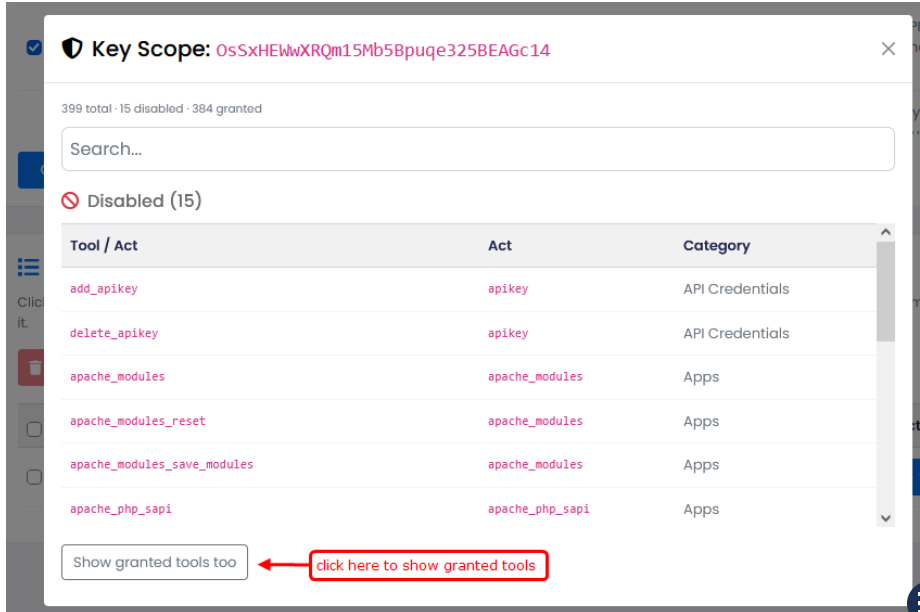
Use the Search field to find specific tools.
Click Show granted tools too to view permitted tools.
Disabled: Tools restricted for the selected MCP key.
Granted: Tools accessible through the selected MCP key.