
Overview
DNSSEC (Domain Name System Security Extensions) adds layer of security to DNS by using cryptographic signatures to verify DNS responses. It helps protect domains against DNS spoofing, cache poisoning, and other DNS-related attacks.
Webuzo provides a Manage DNSSEC interface that allows administrators to create, view, and delete DNSSEC keys for domains hosted on the server.
This guide explains how to manage DNSSEC keys and configure DNSSEC for a domain using the Webuzo Admin Panel.
Access Manage DNSSEC
Log in to the Webuzo Admin Panel as an administrator.
Navigate to DNS Functions > Manage DNSSEC.
Select the domain for which you want to manage DNSSEC keys from the domain dropdown menu.
The Manage DNSSEC wizard displays the DNSSEC keys associated with the selected domain.
If no DNSSEC keys have been generated, the interface displays the message:
"No keys found for this domain."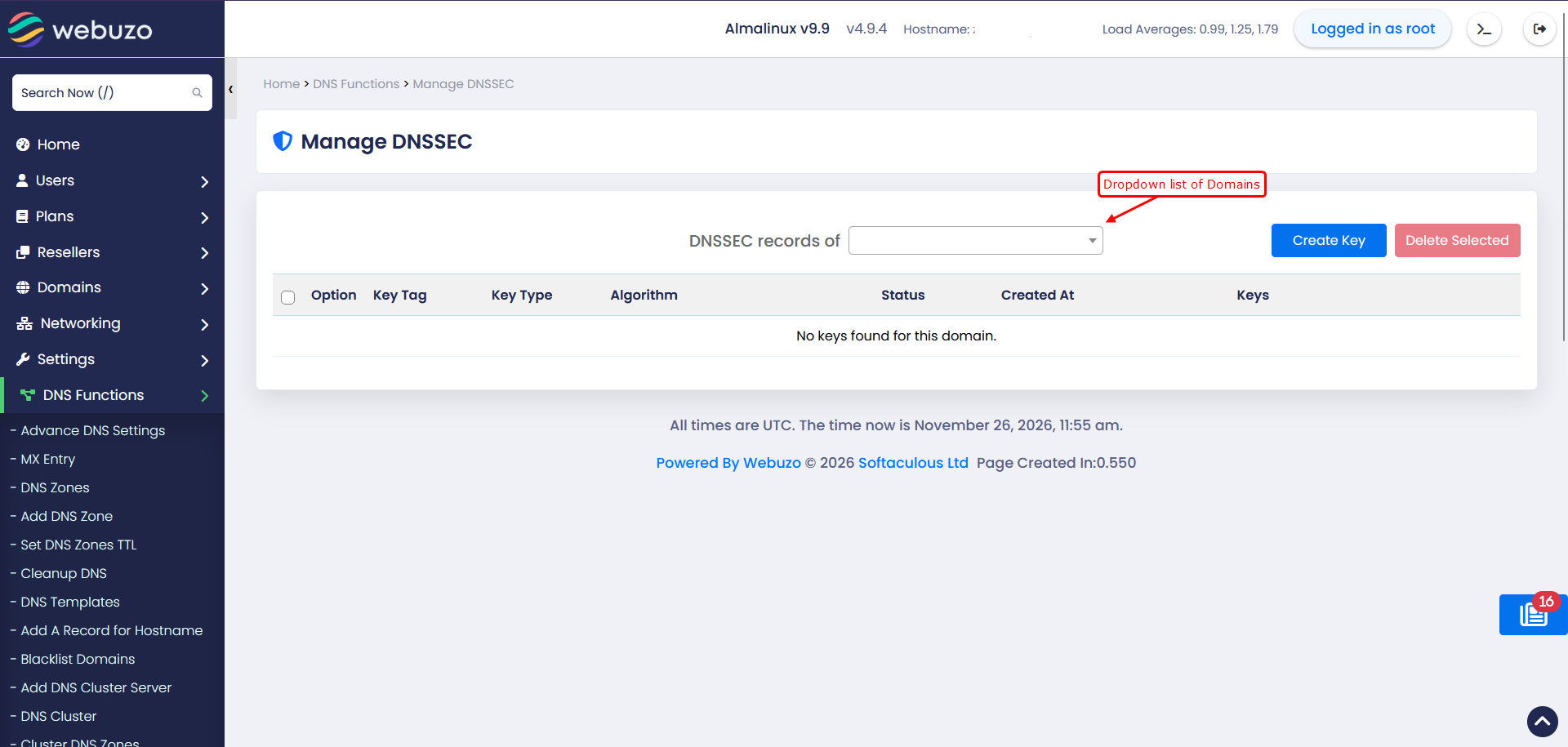
Create a DNSSEC Key
- To generate a DNSSEC key for a domain:
- Navigate to Webuzo Admin Panel > DNS Functions > Manage DNSSEC wizard.
- Select the required domain from the dropdown menu.
- Click the Create Key button.
- The Create DNSSEC Key window will appear.
- Configure the following options.
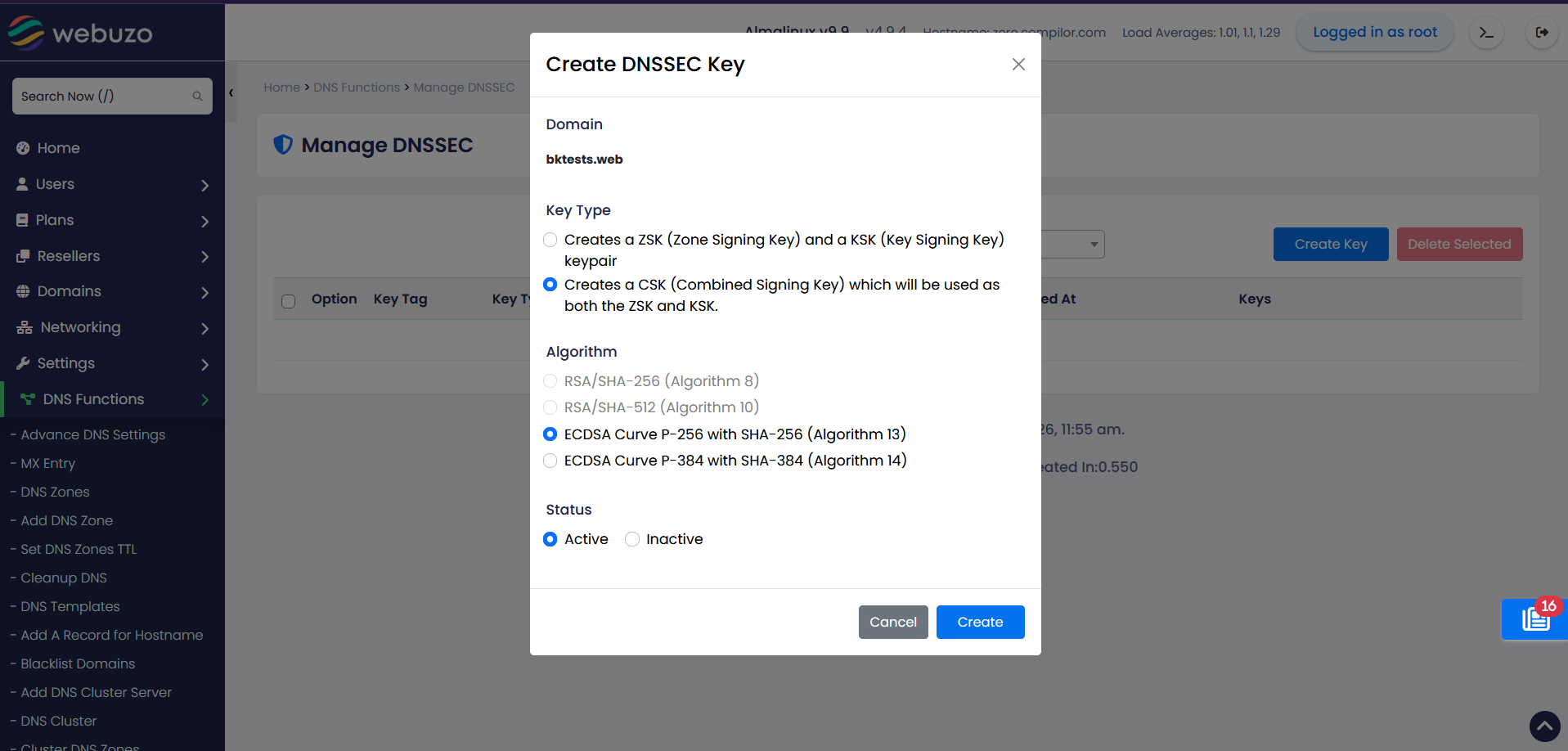
Key Type
Select one of the following key configurations:
- ZSK (Zone Signing Key) and KSK (Key Signing Key): Creates a separate ZSK and KSK key pair. The ZSK is used to sign DNS records, while the KSK is used to sign the DNSKEY record.
-
CSK (Combined Signing Key): Creates a single key that is used for both ZSK and KSK operations.
Algorithm
Select the cryptographic algorithm to be used for generating the DNSSEC key.
The available algorithms are:
8 - RSA/SHA-256
10 - RSA/SHA-512
13 - ECDSA Curve P-256 with SHA-256
14 - ECDSA Curve P-384 with SHA-384
Note: Ensure that the selected algorithm is supported by your DNS provider and domain registrar.
Status
Select the initial status of the generated key:
Active: Creates the key in an active state.
Inactive: Creates the key in an inactive state.
After configuring the required options, click Create, and Webuzo will generate the DNSSEC key for the selected domain.
View DNSSEC Keys
After successfully creating a key, it will appear in the DNSSEC records table.
The table displays the following information:
This wizard also provides an options menu for managing individual keys.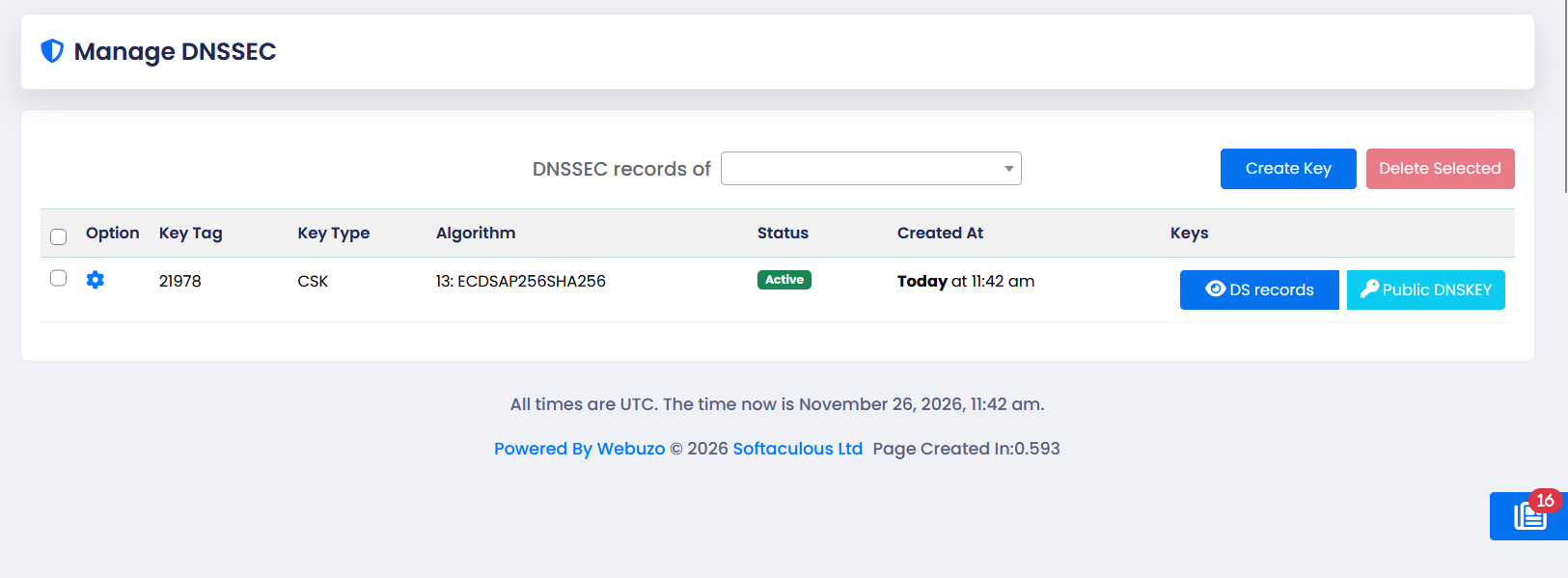
View DS Records
DS (Delegation Signer) records establish the chain of trust between the parent DNS zone and the domain's DNSSEC keys.
To view the DS records:
Navigate to DNS Functions > Manage DNSSEC.
Select the required domain.
Locate the DNSSEC key in the records table.
Click the DS records button.
Webuzo displays the DS record information associated with the selected key.
Copy the required DS record details and add them to your domain registrar's DNSSEC management interface.
The registrar typically requires the following information:
Key Tag
Algorithm
Digest Type
Digest
Important: Adding the DS record at the domain registrar is necessary to establish DNSSEC validation through the DNS hierarchy. Creating a DNSSEC key in Webuzo alone does not complete the registrar-side configuration.
View Public DNSKEY
The Public DNSKEY contains the public key information associated with the generated DNSSEC key.
To view the Public DNSKEY:
Navigate to DNS Functions > Manage DNSSEC.
Select the required domain.
Locate the DNSSEC key in the records table.
Click the Public DNSKEY button.
Webuzo displays the public DNSKEY record associated with the selected key.
This information can be used when checking or troubleshooting DNSSEC configurations.
Delete DNSSEC Keys
To remove a DNSSEC key:
Navigate to DNS Functions > Manage DNSSEC.
Select the required domain.
Select the checkbox next to the DNSSEC key you want to remove.
Click Delete Selected.
Confirm the deletion if prompted.
The selected DNSSEC key will be removed.
Important: Before deleting a DNSSEC key, remove its corresponding DS record from the domain registrar. Leaving an outdated DS record at the registrar after removing the corresponding DNSSEC key can cause DNSSEC validation failures and make the domain inaccessible to validating resolvers.
Important Notes
DNSSEC keys must correspond to the keys published by the authoritative DNS service for the domain.
The DS record must be configured at the domain registrar to establish the DNSSEC trust chain.
Ensure that the selected algorithm is supported by the registrar.
Do not delete or replace an active DNSSEC key without first planning the corresponding DS record changes.
Verify the DNSSEC configuration after completing the setup using an external DNSSEC validation tool.
Conclusion
Webuzo's Manage DNSSEC interface allows administrators to manage DNSSEC keys directly from the Admin Panel. By generating the appropriate keys and configuring the corresponding DS records at the domain registrar, administrators can enable DNSSEC protection for their domains.